Support, conversations and SHM
One workspace for customer conversations in the provider portal and Chatwoot.
Connect in-app support
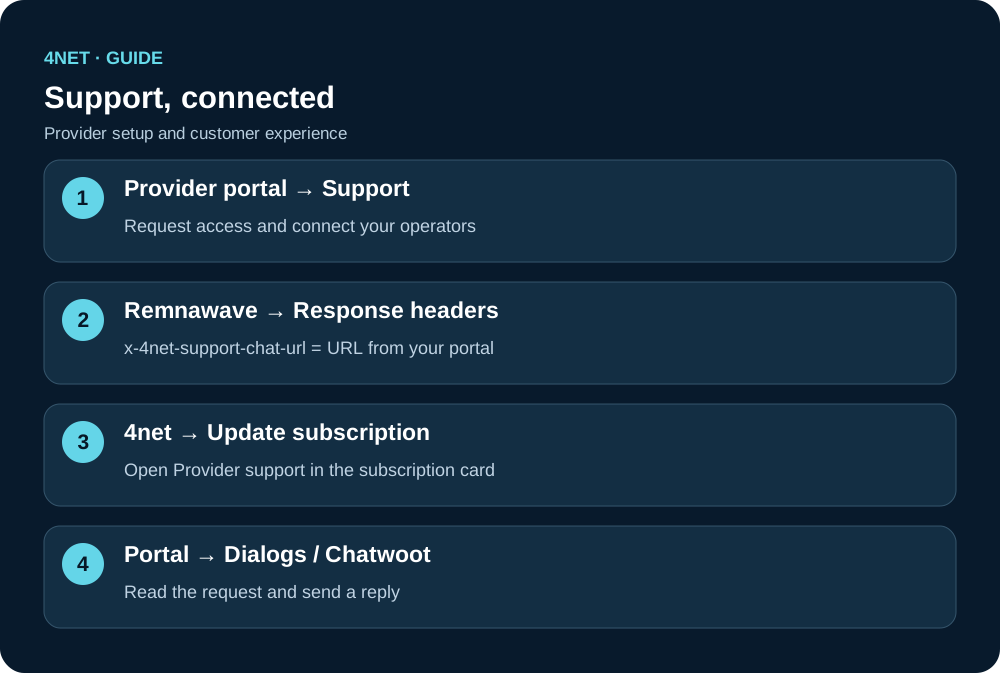
- Open Support in your provider portal and submit a connection request.
- After approval and setup, copy the exact x-4net-support-chat-url provided in the portal.
- Add it to Remnawave subscription response headers. Refresh the subscription in 4net.
- Open Provider support on the main subscription card to start a conversation.
[
  {"key":"x-4net-support-chat-url","value":"https://support.vps-tech.ru/v1/providers/YOUR_PROVIDER_ID/config"},
  {"key":"x-4net-support-url","value":"https://provider.example/help"}
]
Use the exact chat URL from your account. x-4net-support-url is an external fallback link; it does not enable chat. The legacy support-url remains supported. If a user belongs to an external squad, check its header overrides too.
Handle conversations
Open Dialogs, select a request on the left and read the conversation in the centre. Use Open / All / Resolved status and All / Mine / Unassigned filters. Take a conversation to assign it to yourself. Type your reply and send it explicitly. Replies are text-only, up to 8 KB; open Chatwoot for attachments and internal notes. Previous or closed conversations can remain read-only.
Operator sign-in to Chatwoot
- Use Support in the portal to load your personal Chatwoot access details.
- For browser access, use Open dialogs. For the mobile app, set the server to https://desk.vps-tech.ru.
- Enter your personal technical sign-in address shown in the portal and your portal password. Do not reuse another operator’s details.
- Select the provider workspace and All conversations if an assignment filter hides requests.
Look up SHM accounts
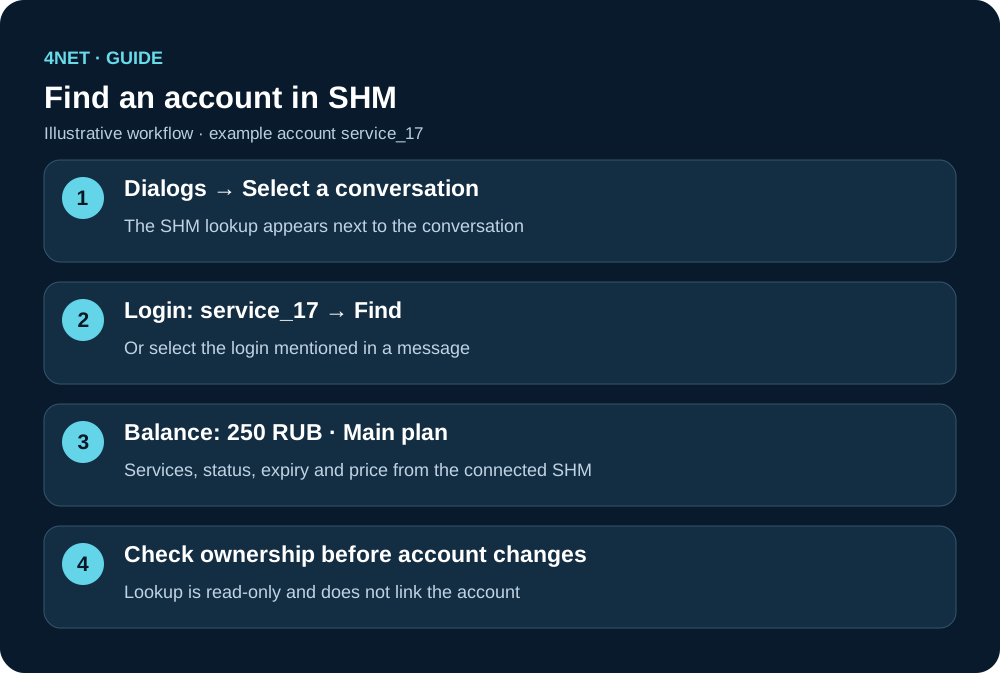
SHM must be connected to your provider by the platform administrator. In Dialogs, select a conversation: the SHM lookup appears on the right, or below the messages on a narrow screen. Enter service_17 and press Find, or select the same login in a customer message. The card shows balance, services, status, expiry and price supplied by SHM. This is a read-only lookup, not proof that the sender owns that account.
In Chatwoot, open the SHM check tab in a conversation; on mobile, use the conversation menu. Sign in to the provider portal in the panel if prompted. No results? Check the login, provider workspace and operator access. “SHM not connected” means this provider needs integration setup.